From conversation to action
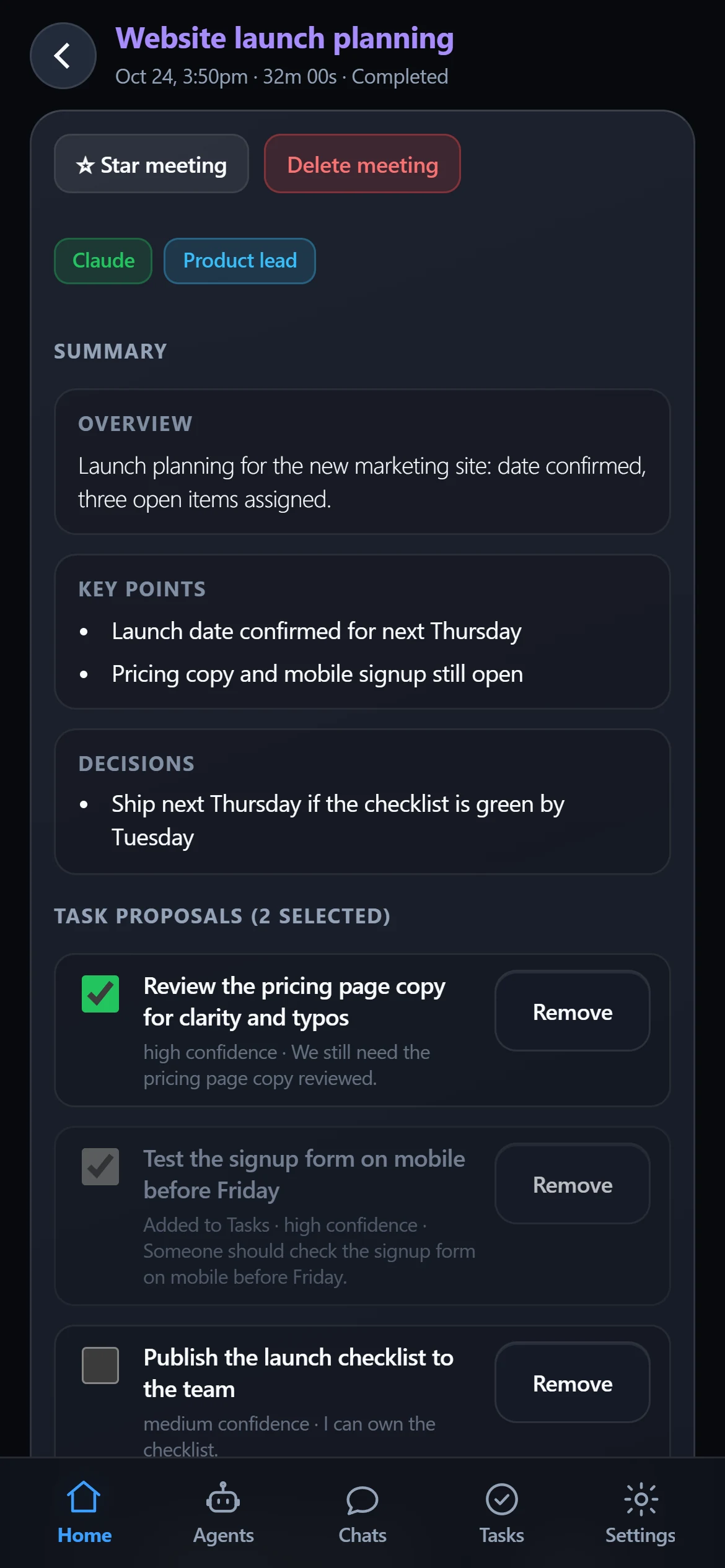
Record a meeting, get a clear summary and suggested follow-ups, then choose which ones become Tasks. Nothing is added on its own.
Your AI agents. Your sessions. One place.
Continue the AI sessions you’ve already started on your computer. Create agents with your favorite supported providers. Keep work moving from wherever you are.
Create your agents once.
Access them anywhere.
From your phone and Even Realities G2 glasses — while the MyAgents Bridge runs on your computer.
MyAgents is in development. Accounts are open now. The phone and Even Realities G2 apps are in private testing and aren’t available to download yet; linking your computer to your account and using your agents from the web are planned.
Continue
Start working with your AI agent on your computer. Pick up the same conversation through MyAgents when you step away.
1Start on your computer
> Find three recent product launch pages we can learn from, and note what makes each one work.
Looking at a few recent launch pages now.
Here is what stood out: a one-line promise above the fold, the product shown in motion, and one call to action repeated at the end.
> Yes, a short checklist please.
Saved launch-checklist.md. I can draft the hero copy next.
▍
2Open MyAgents
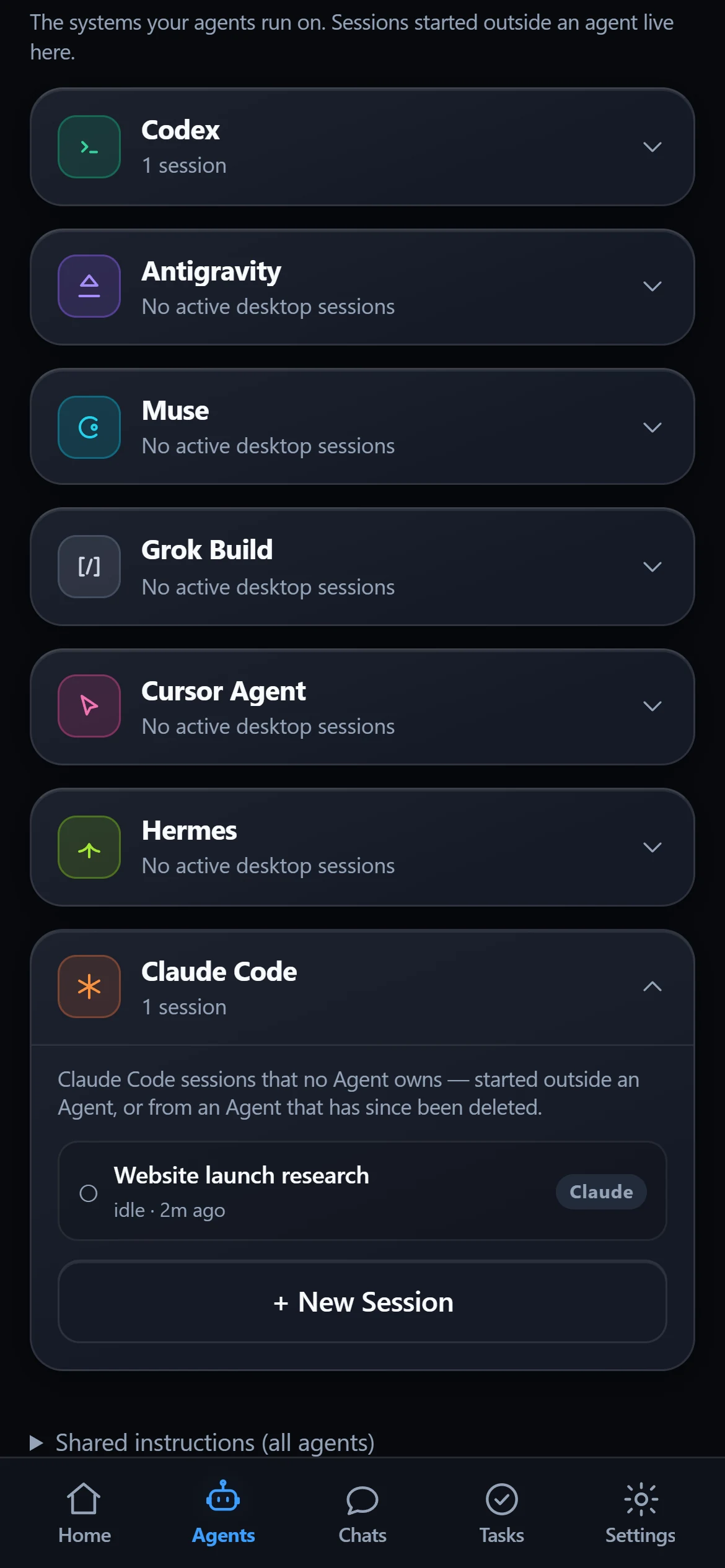
The session is already there, under Claude Code — no new conversation needed.
3Continue where you left off
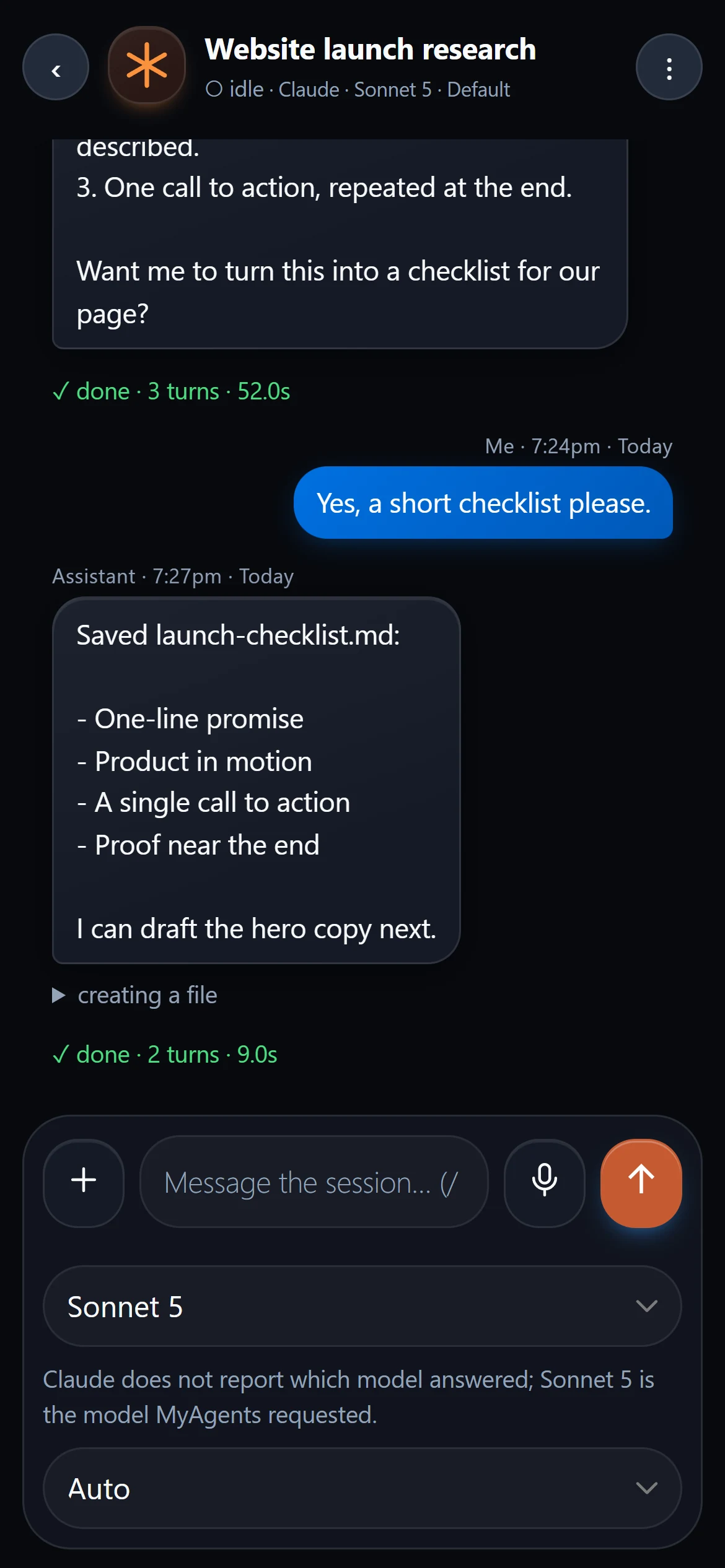
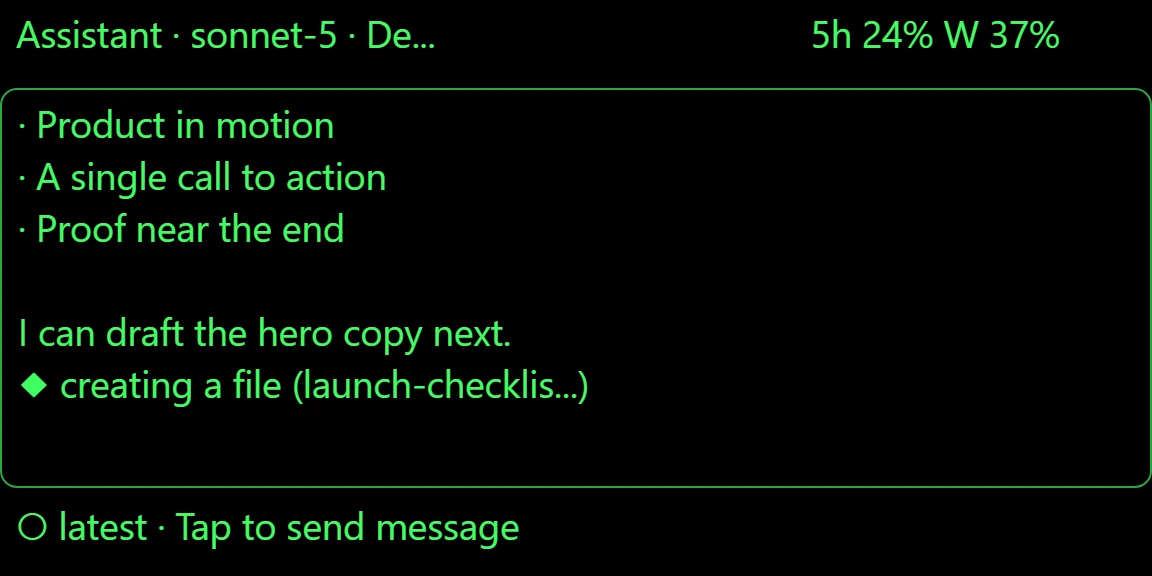
Same session name, same history — on your phone or your G2 glasses.
What it needs
Muse Code sessions appear too. Antigravity, Grok Build, Cursor and Hermes sessions can be continued when they were started through MyAgents. A conversation always stays with the provider it started on.
Create
Create agents for the work you want to get done. Choose from your supported AI providers and give each agent its own purpose.
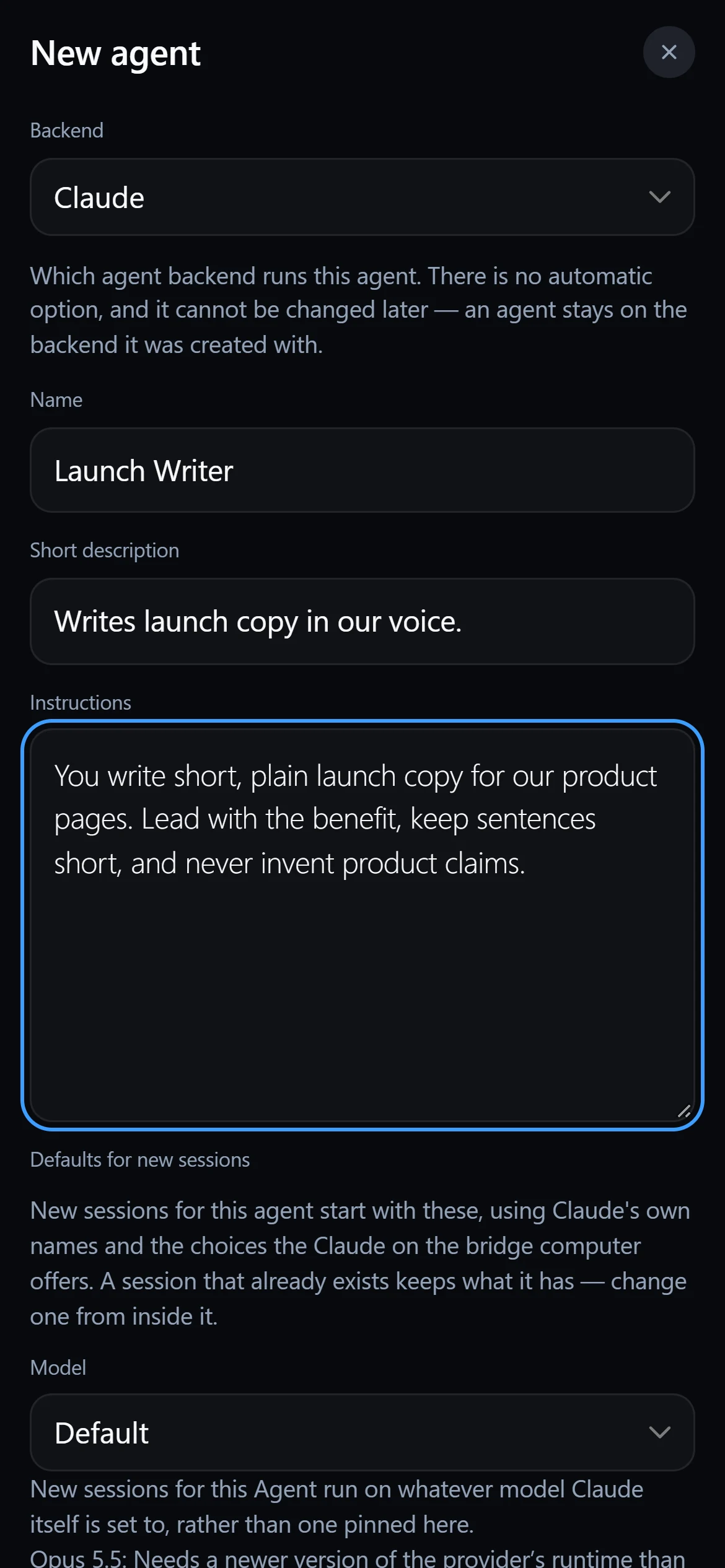
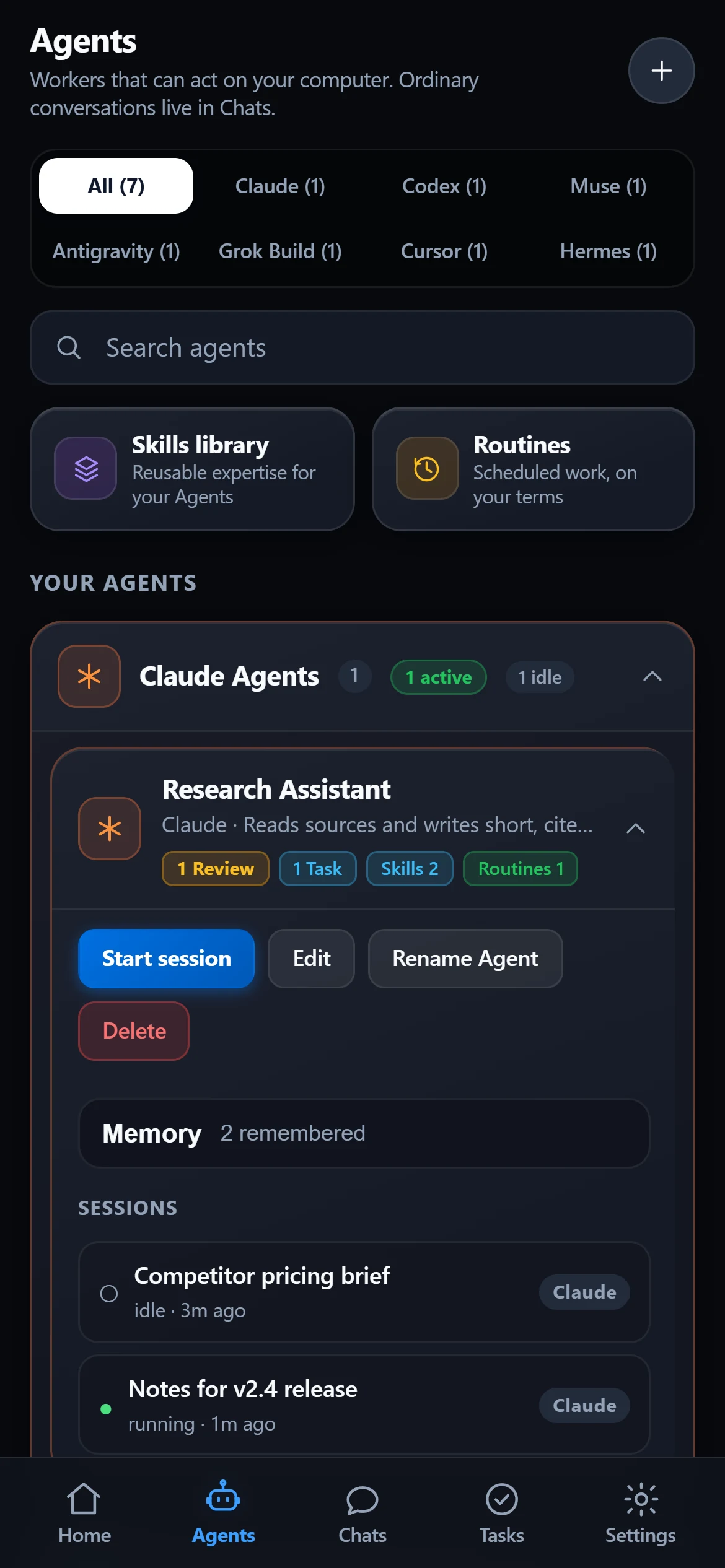
New agent
Starts a new session with your instructions, on the provider you chose.
Desktop session
Continues the conversation already in progress on your computer.
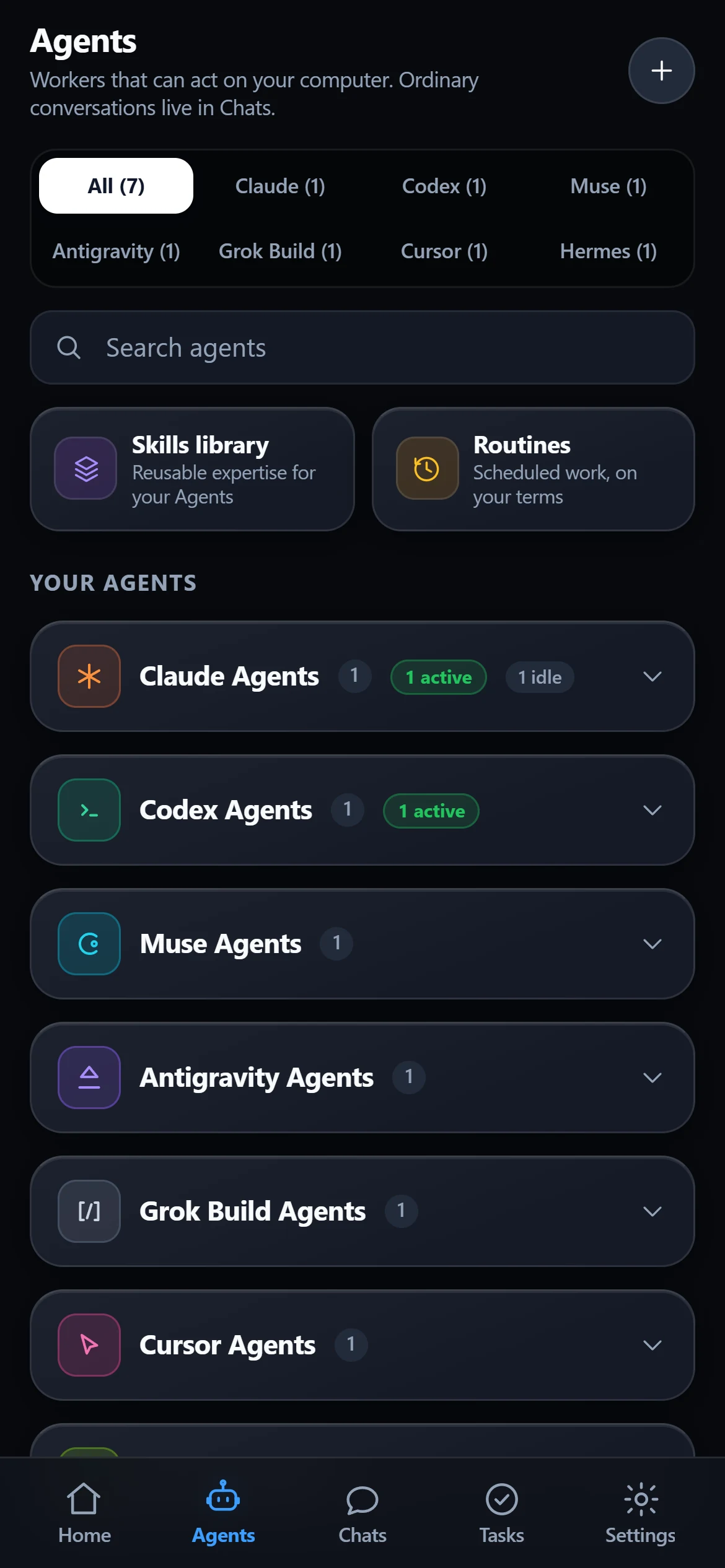
Providers differ in tools, Skills, memory and permissions, and MyAgents shows those differences instead of hiding them.
Devices
Use the device that fits your moment, without losing track of the agents and sessions you’re working with.
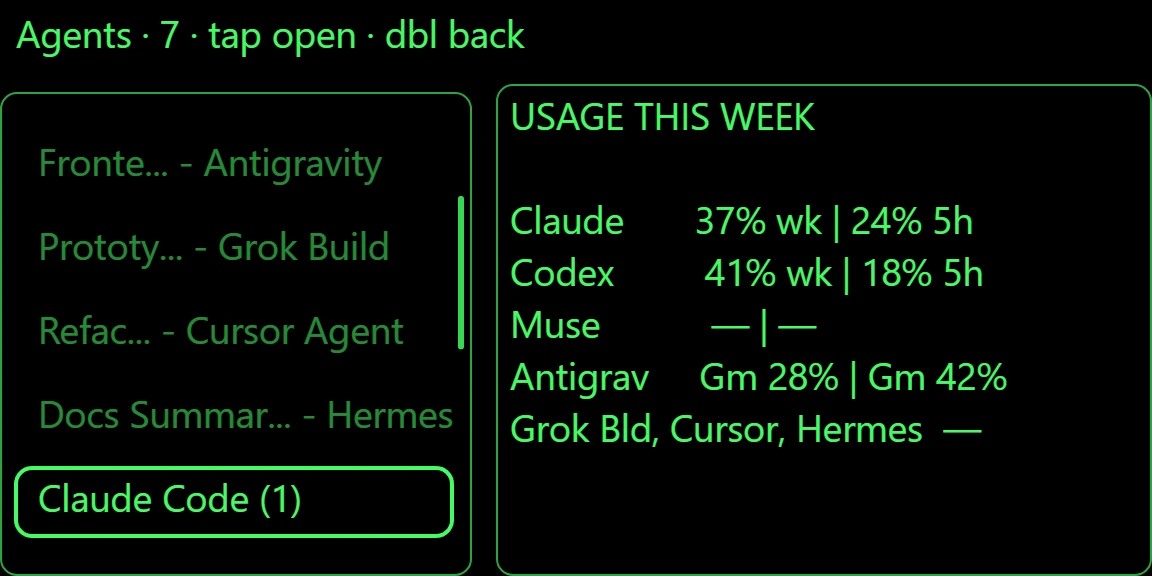
Glance at your agents, read the latest work, approve requests and reply — hands free.
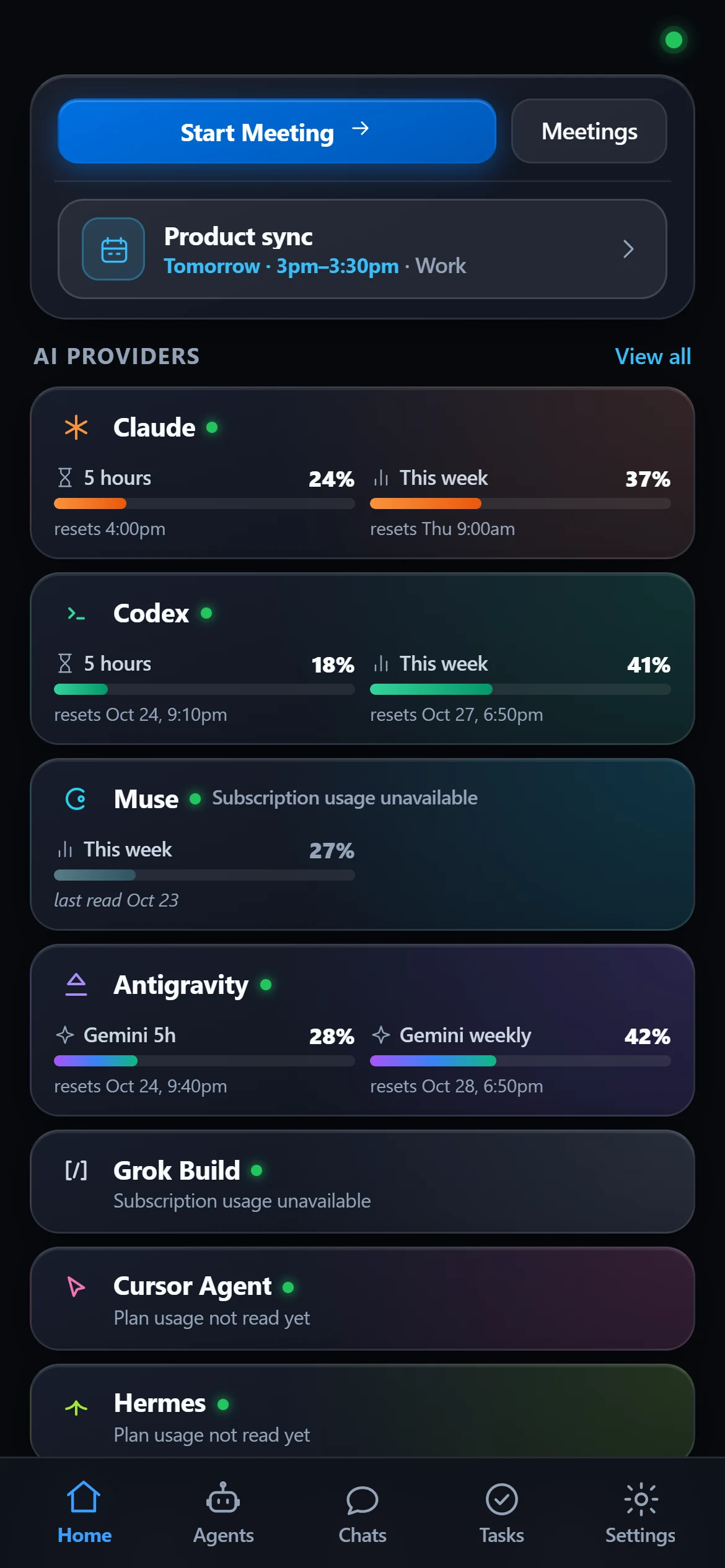
The full experience on your phone. Today it runs inside the Even Realities app; a standalone mobile app is planned.
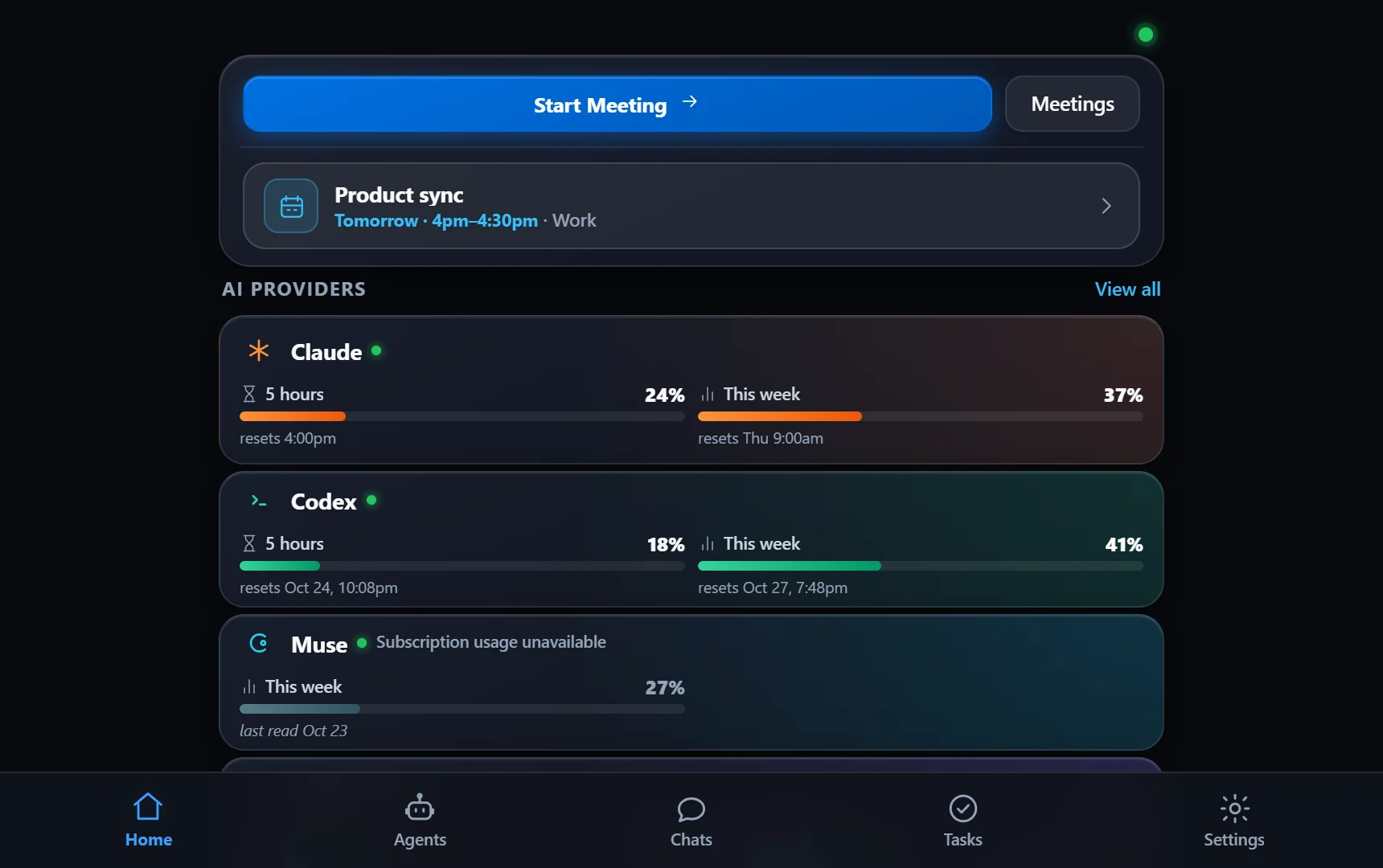
MyAgents in your browser at your desk. Not available yet; shown here is today’s interface in a browser window.
Every device works through the MyAgents Bridge on your computer. What each device can do differs, and the app shows it.
Try it
Explore the experience. See how your agents, conversations, and tasks work across your devices.
Demo · sample data
This is the real MyAgents interface running in a demo mode: no account, no Bridge, no network, no AI. Replies are scripted and say so, and nothing leaves this page.
Demo · sample data
The screens come from the real MyAgents app logic, drawn at the G2 display’s 576×288 resolution. It shows how the interface works, not the hardware: the firmware font, brightness, ring and microphone are not reproduced.
And more
Record a meeting, get a clear summary and suggested follow-ups, then choose which ones become Tasks. Nothing is added on its own.
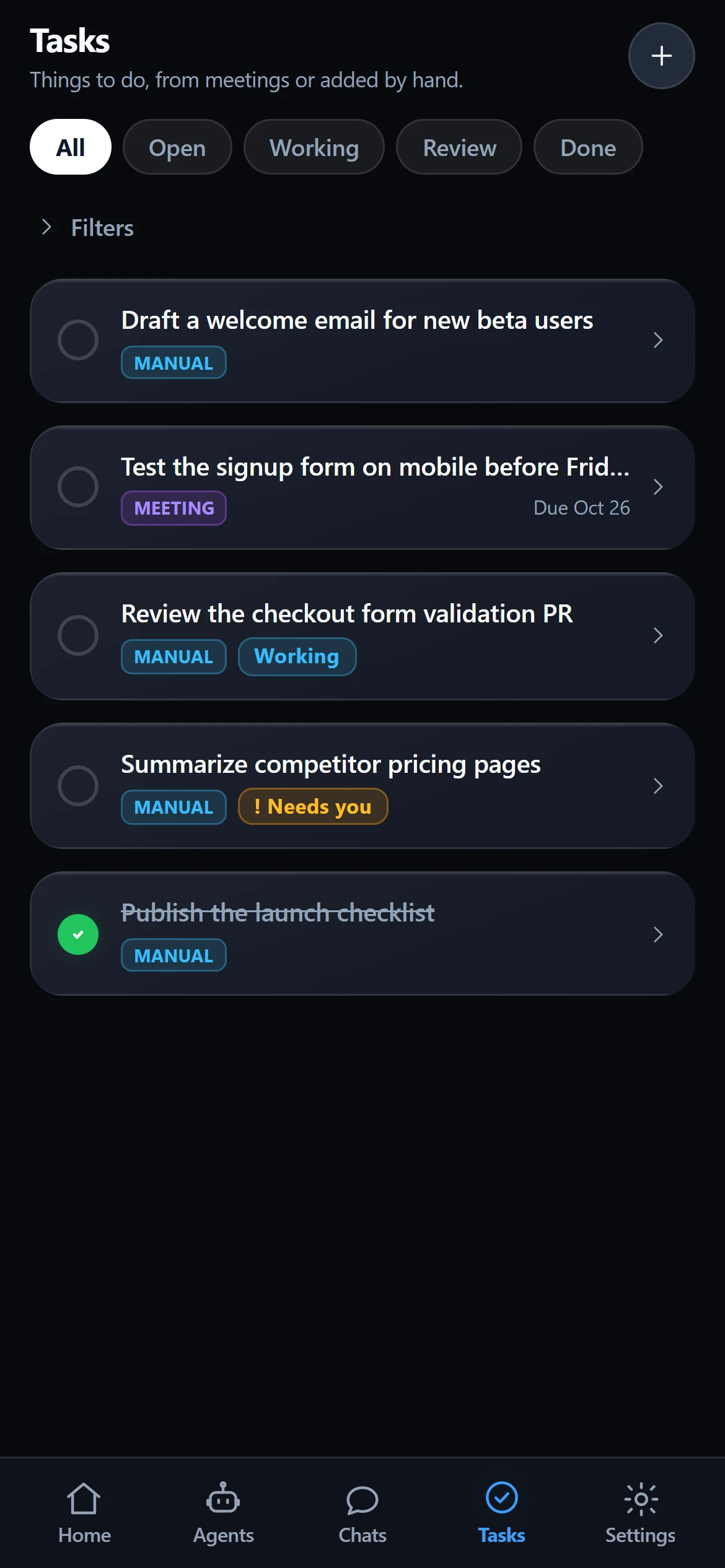
Hand a Task to an agent and follow it from Working to Review.
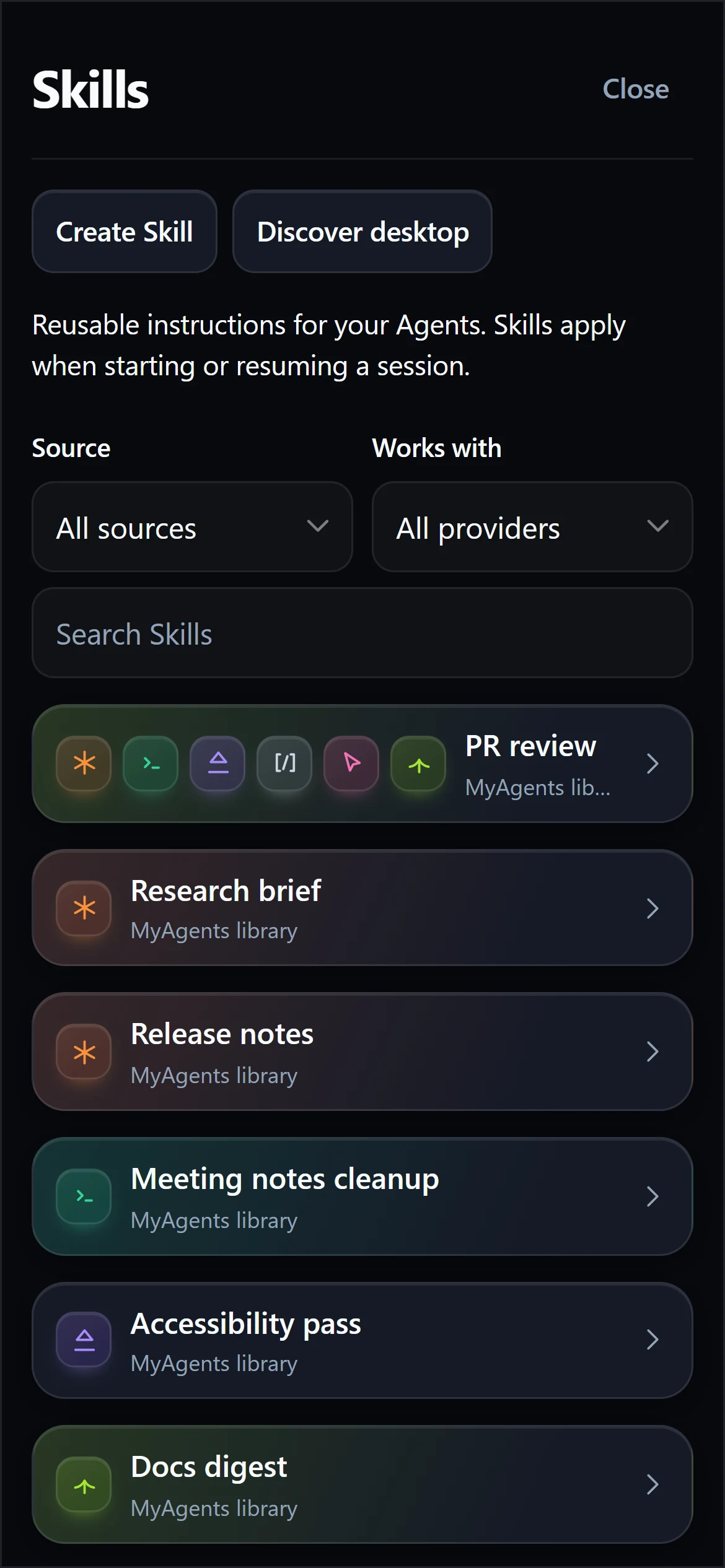
Keep reusable Skills — how you like things done — and attach them to agents that can use them. Schedule Routines to run a Skill, create a Task or start an agent while your computer is on.
Skills are verified on Grok Build and Cursor, being verified on Claude Code, Codex, Antigravity and Hermes, and not supported on Muse.
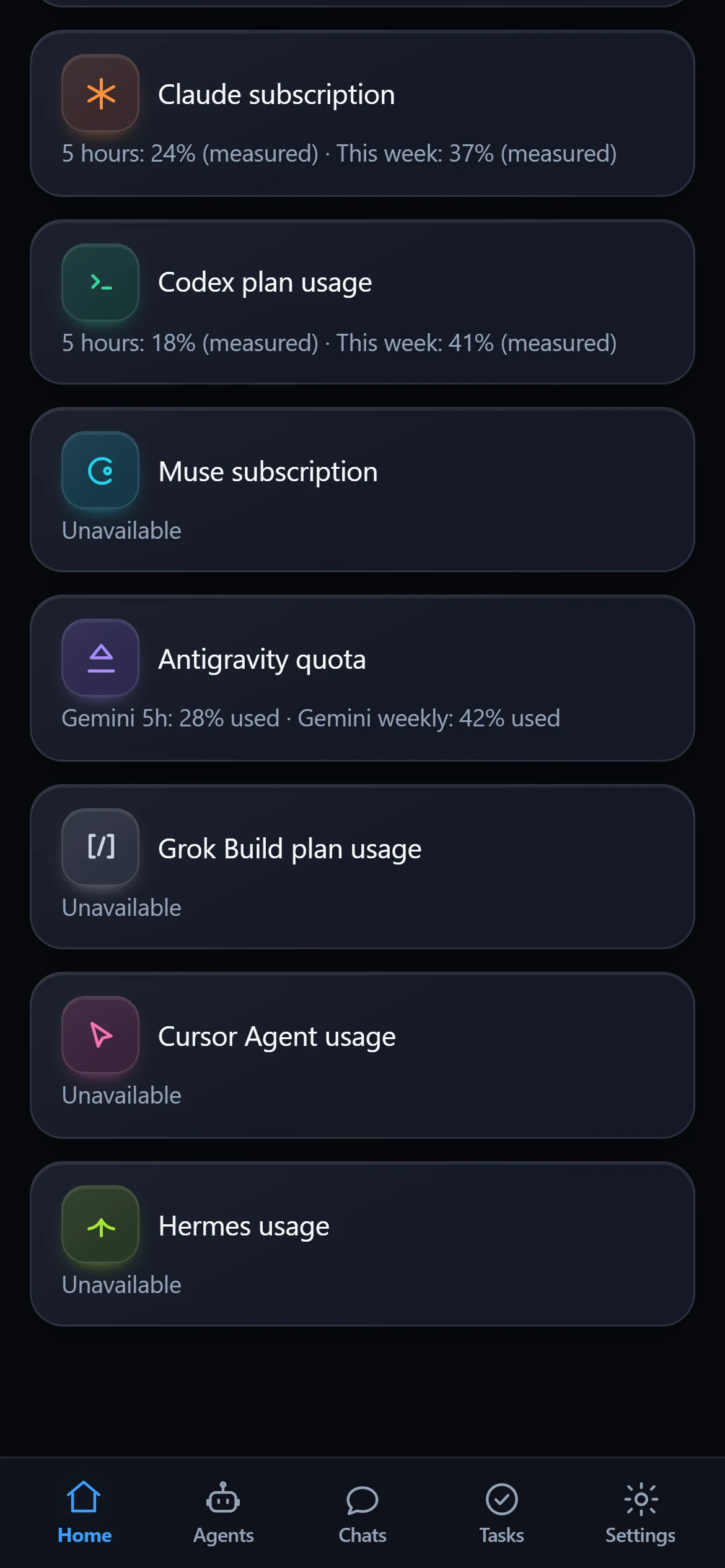
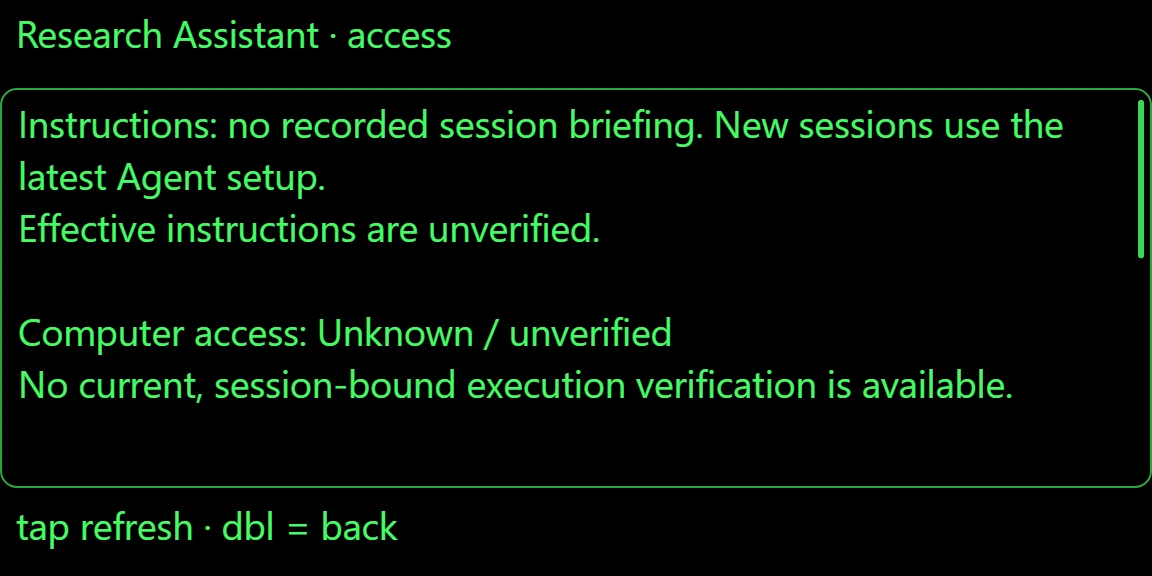
See plan usage, session state and access where providers report them. When a number isn’t available, MyAgents says so instead of guessing.
Providers
MyAgents works with each provider through its own supported tools. Support differs, and the app always shows where.
Agents and Remote Control sessions you can pick up from your glasses or phone, with approvals on the go.
Agents and Codex threads you can continue from MyAgents, with the models your installation offers.
Agents and conversations. Picking a model also picks its reasoning level.
Agents with instructions, Skills and tools, on versions MyAgents has verified.
Agents with instructions, Skills and tools, on versions MyAgents has verified.
Native sessions. Muse can’t receive agent instructions or Skills yet.
In development: agent instructions on supported versions, with more to follow.
Provider names belong to their owners. MyAgents is independent and isn’t affiliated with or endorsed by them. The badges are MyAgents’ own artwork.
Phone screens show the real MyAgents interface with sample data. Glasses screens come from the MyAgents app — captured from the Even Realities simulator, or drawn by this page’s demo — using test builds and sample data.
Create your MyAgents account now. The phone and Even Realities G2 apps are in private testing; they’ll be listed here when they’re ready.